
Receive Access Code
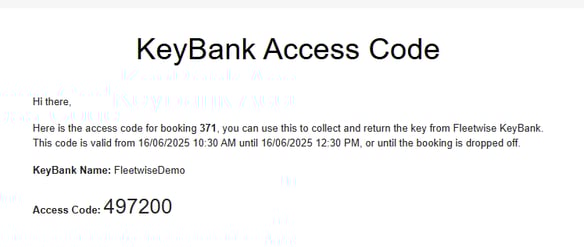
Once your booking is ready for pickup, if the vehicle is managed by a KeyBank, you will receive an automated email with the KeyBank name and access code.
Depending on your site's configuration, the access code will either be randomly generated or based on your employee ID.
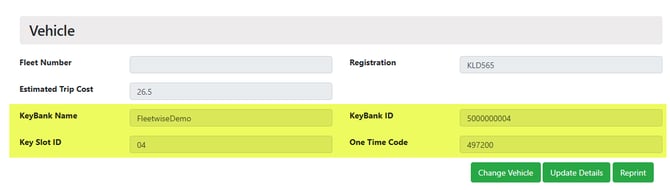
Additionally, you can check the access code by logging in PVBS on a computer by locating the booking on the Home page and choosing Edit Booking.
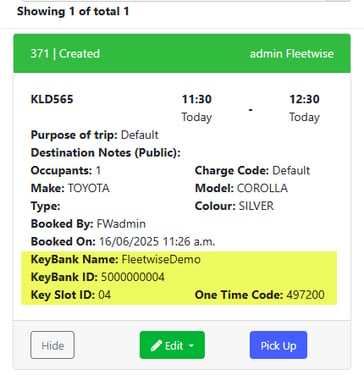
Or by logging in PVBS on a mobile device by find the booking and tab Details.
The access code is generated once your booking enters the pickup window and the booked vehicle is available in the KeyBank. You can collect the key any time up until the Booking End time, or until the booking is cancelled.
If the booking is edited before the key is not yet collected, the original access code will be invalidated. A new access code will be issued and sent to you, provided the booking is still within the pickup window.
If the booking has been picked up, the access code will stay valid until the Booking End time plus the Drop Off Late buffer, allowing additional time for late key returns.
If the access code is not generated, check Booking Manager to see
1. if there is a booking that is in progress on the same vehicle
2. if the key is out (indicated by a red key icon)
3. if the key slot has been disabled (indicated by a grey key icon)
Collect the Key
Once you have received the access code, go to the KeyBank and tap Enter Access Code on the KeyBank touch screen.

Enter the access code.
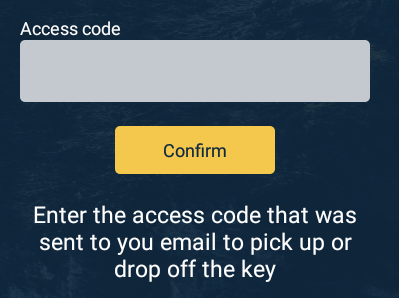
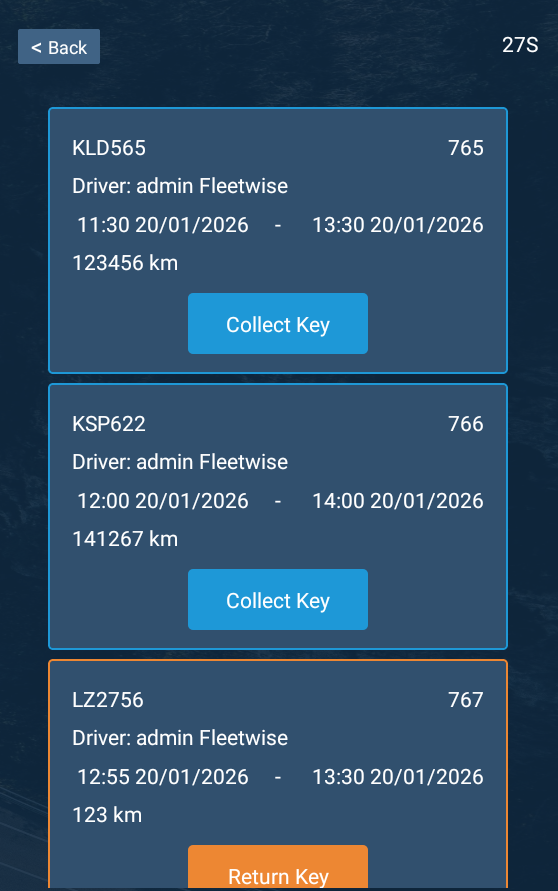
If your access code is correct and your booking is within the pickup window, your booking details will appear. If there are multiple bookings with the same access code (only if your side is configured to use staff ID as the access code), they will be displayed based on Booking Start time in ascending order. Tap Collect Key to release the key.
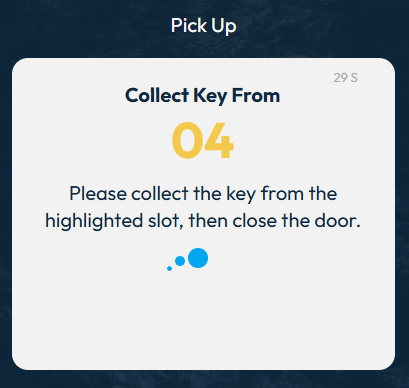
After confirming, a message will appear showing the key slot ID where you can collect your key, the door will unlock, and the key will be released automatically.
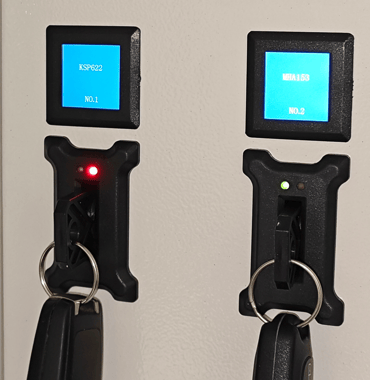
The key slot ID and the car registration are displayed on the small LED screen above each key slot, and the key slot will be indicated with a flashing LED screen.
Collect the key from the key slot then close the KeyBank door to start your trip. Your booking will be marked as Picked Up on PVBS.
If you have issue collecting your key, please check if your access code is valid, any changes to the booking will invalidate the original access code, and a new one will be sent to you via email once it is ready to be picked up.
If there is an earlier booking on the vehicle you have booked, you will receive the access code once the key is returned to the KeyBank, or after your booking is automatically reallocated to an available vehicle.
Return the Key
After your trip, return to the KeyBank and tap Enter Access Code on the KeyBank touch screen.

Enter the access code again.
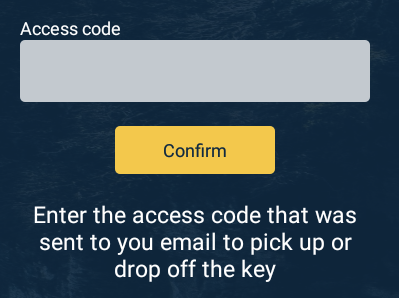
If your access code is correct and the booking can be dropped off, your booking details will appear. Depends on your site's configuration, you might be required to enter odometer reading or EV related information before your key can be returned. Tap Confirm to return the key.
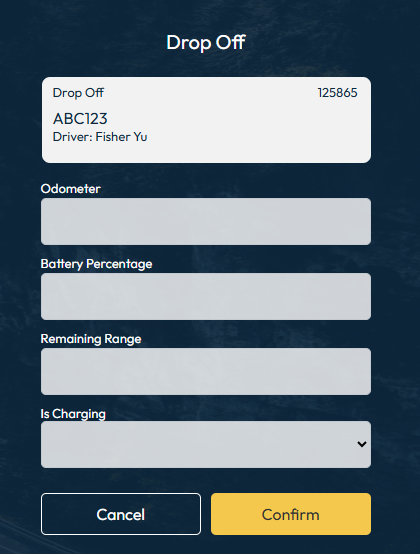
After confirming, a message will appear showing the key slot ID where you should return your key, the door will unlock.
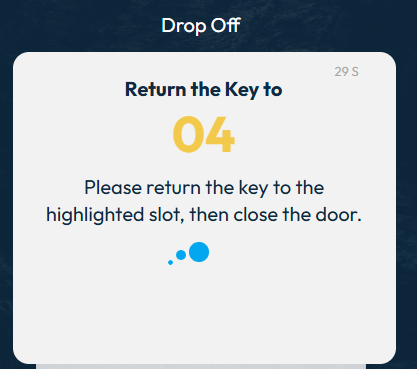
The key slot ID and the car registration are displayed on the small LED screen above each key slot, and the key slot will be indicated with a flashing green LED light.
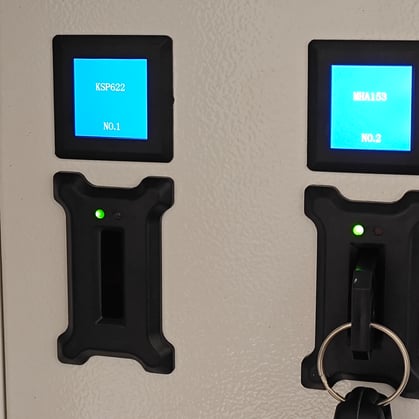
Return the key to the highlighted key slot, make sure the key is secured in place then shut the KeyBank door. Your booking will be marked as Dropped Off on PVBS.
If the user have any issue collecting or returning the key, an administrator can manually release or return the key using key management portal.